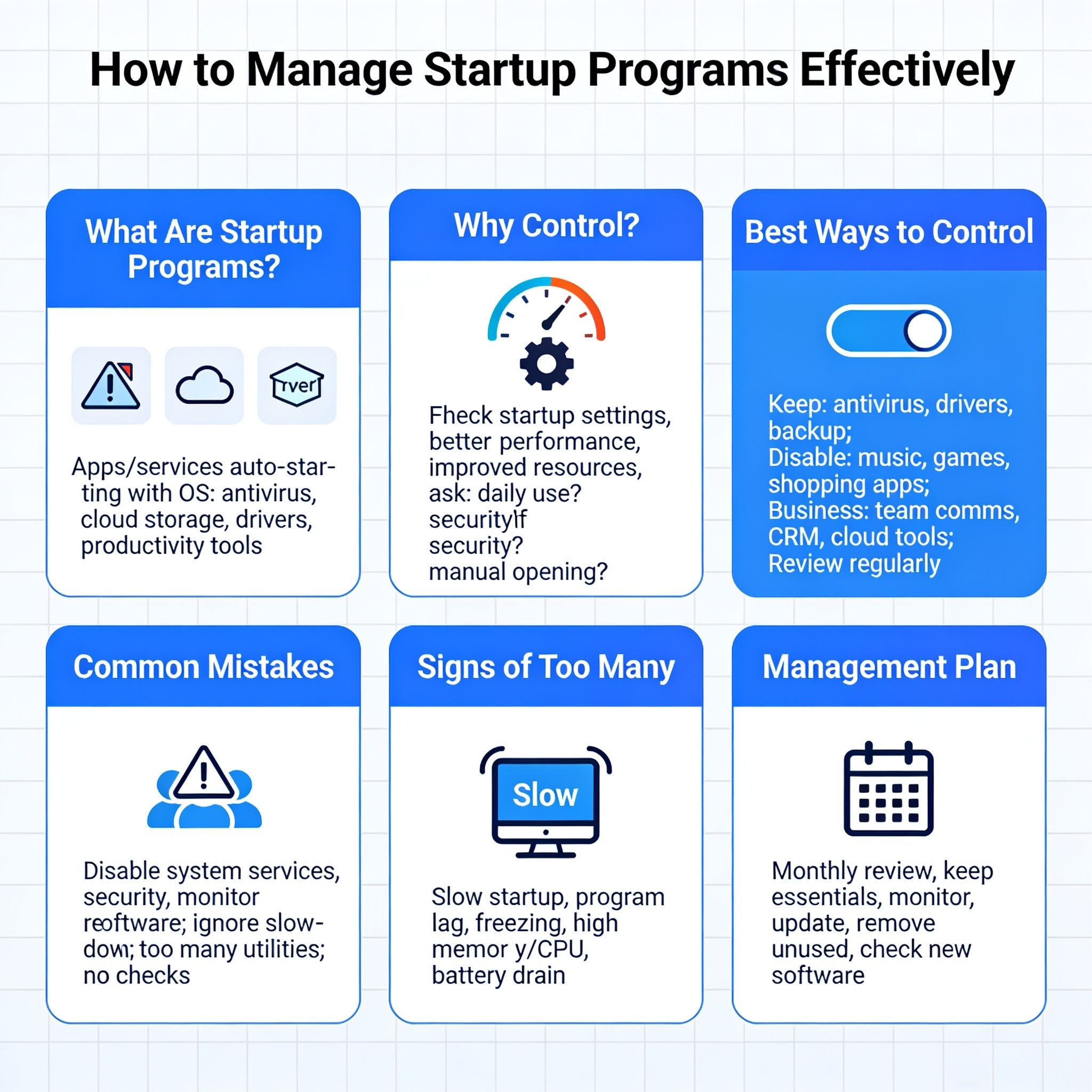
How to Manage Startup Programs Effectively
Startup programs are programs that automatically start up when you start your computer. Some of these programs are important like antivirus software and hardware drivers and cloud backup services. They keep your computer safe and working well.
Many apps also add themselves to the startup list without asking you. Too many startup programs can slow down the computer start-up process, use more memory and slow down overall performance.
Managing startup programs helps your computer start faster, improves performance and makes better use of system resources. Whether you use your computer at home or for business, controlling startup programs is a simple way to keep it running smoothly.
What Are Startup Programs?
Startup programs are apps and background services that automatically start when your operating system loads. They are designed to make frequently used software ready to use without opening it manually.
Common startup programs include:
Antivirus and security software
Cloud storage and syncing services
Messaging and communication apps
Hardware drivers
Productivity software
System maintenance tools
Some of these programs are essential while others can be opened only when you need them.
Why You Should Control Startup Programs
Managing startup programs has many benefits for your computer.
Faster Startup
Removing unnecessary startup programs helps your computer boot more quickly allowing you to start working sooner.
Better Performance
Startup apps use your computer memory and processor. Disabling unnecessary programs leaves more resources available for the applications you actually use.
Improved Resource Usage
Many startup programs continue running in the background even when you are not using them. Managing them helps reduce unnecessary memory and CPU usage.
Better Security
Checking your startup list regularly helps you find unknown or suspicious programs that could be harmful or unwanted.
Increased Productivity
A clean startup means fewer distractions and quicker access to the programs you really need.
How to Find Startup Programs
Before turning off startup programs check which applications are starting automatically.
Check Startup Settings
Most operating systems have a startup management section where you can see all programs that start automatically.
Monitor Performance
After your computer starts, check which programs are using a lot of memory, CPU or disk resources. These may be slowing down your system.
Ask Yourself These Questions
Before disabling a program, ask:
Do I need this program as soon as my computer starts?
Do I use it every day?
Can I open it manually later?
Is it important for security or system performance?
Will turning it off cause any problems?
These questions can help you decide whether to keep or disable a startup program.
Best Ways to Control Startup Programs
Keep Important Programs Enabled
Some programs should always stay in the startup list because they protect your computer or help it function properly.
Examples include:
Antivirus software
Hardware drivers
Backup software
System monitoring tools
Cloud syncing services used for work
Disable Unnecessary Programs
Many applications do not need to open every time your computer starts.
Examples include:
Music apps
Video players
Gaming platforms
Photo and video editing software
Shopping apps
Social media applications
Turning these off can improve startup speed.
Keep Business Apps Ready
If you use your computer for work you may want some business tools to open automatically.
Examples include:
Team communication apps
Project management software
CRM systems
Cloud collaboration tools
Office productivity software
This allows you to begin work immediately after logging in.
Review Startup Programs Regularly
Software updates and new installations often add new startup programs.
Regularly check your startup list to:
Remove unused apps
Delete duplicate entries
Remove outdated software
Check newly added programs
Keep your computer running efficiently
Watch for Hidden Background Programs
Some software installs background services that may not appear in the normal startup list. These hidden services can still slow down your computer so use system monitoring tools to identify them.
Common Mistakes to Avoid
Avoid these common errors when managing startup programs.
Disabling Important System Services
Turning off essential system services may cause hardware or software problems.
Disabling Security Software
Always keep antivirus and other security programs running at startup to protect your computer.
Ignoring Slow Performance
If your computer starts slowly or freezes often, review your startup programs instead of ignoring the problem.
Installing Too Many Utility Apps
Many cleaning or optimisation tools add themselves to startup making your computer even slower.
Never Checking Startup Settings
Startup settings should be reviewed regularly because new software often changes them automatically.
Tips for Businesses and Startups
Businesses can improve computer performance by managing startup programs across all company devices.
Good practices include:
Use the same startup settings on all computers.
Limit unnecessary software installations.
Monitor programs that use a lot of system resources.
Train employees on startup management.
Perform regular IT maintenance.
Use centralised device management when possible.
These steps help improve productivity and reduce downtime.
Signs You Have Too Many Startup Programs
Your computer may have too many startup applications if you notice:
Slow startup times
Programs taking a long time to open
Frequent freezing or lagging
High memory usage after startup
Constant background activity
High CPU usage
Shorter laptop battery life
Overall slow performance
If you notice these problems, reviewing your startup programs can help.
Create a Startup Management Plan
To keep your computer running efficiently:
Review startup programs every month.
Keep only essential applications enabled.
Monitor system performance regularly.
Update software and drivers.
Remove unused applications.
Keep antivirus software active.
Perform regular system maintenance.
Check new software before allowing it to start automatically.
Following these steps helps maintain fast and reliable computer performance.
Conclusion
Managing startup programs is one of the easiest ways to improve your computer's speed and performance. By keeping only essential programs running at startup and disabling unnecessary ones you can enjoy faster boot times, better security and smoother performance. Whether you use your computer for personal tasks or business, regularly reviewing your startup programs will help keep your system efficient, reliable and ready for everyday use..